
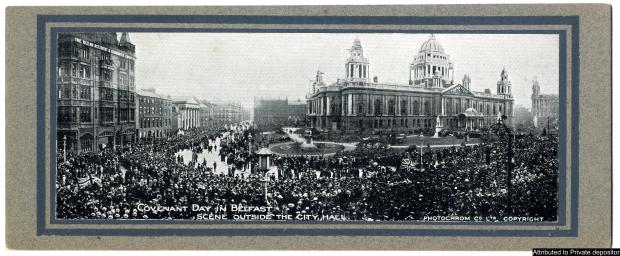
Welcome to the PRONI Ulster Covenant Application. Use this database to search and view digitised images of the original signatures of the men and women who signed the Ulster Covenant or women's declaration in opposition to Home Rule on the 28th September 1912.
Search the Ulster Covenant Signatures
This database of names was created by transcribing nearly half a million original signatures, and as such some subjectivity has been used in interpreting names and addresses. Factors to consider are:
- Variations in handwriting quality
- Signatures by the aged and infirm
- Inconsistent spellings of family names
- Townlands names spelled phonetically
For more information on using the application, see the search guidance below.
Search guidance
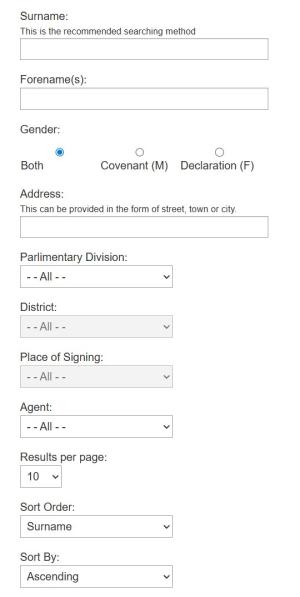
To carry out a search, input the search criteria in the right field(s) and click on the ‘find’ button. The Ulster Covenant can be searched by:
- surname
- forename
- gender (Ulster Covenant, women’s declaration or both)
- address
To refine results to more manageable numbers, we recommend entering more than one search criteria if the information is available. To do this without retyping the criteria, select the 'Modify Search' button at the bottom of the results page. You can also refine the search by:
- parliamentary division
- district
- place of signing
- agent in charge
Searching with these criteria can be difficult due to inconsistency in the original recording method.
You can also sort the results before searching by any of the criteria and in ascending/descending order.
Wildcard search
A wildcard feature has been built into the application for the following criteria fields:
- surname
- forename
- address
This feature may help you find a name or address when you are unsure of the spelling. You can enter the part of a name or place you know the spelling of, for example ‘Bally’ which will show results for Ballymena, Ballymoney, and Ballycross.
Viewing digitised signatures
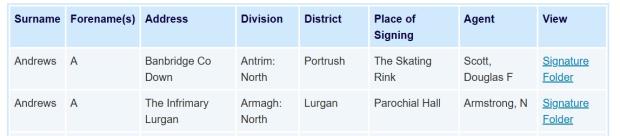
To view the digitised signature relating to a result, select ‘Signature' under the ‘View’ column. To view the folder containing the signatures, select 'Folder' instead. The images can be viewed as either:
- 'PNG'- web optimised image that opens a new tab on your browser
- 'DjVu' - an image of the original scanned document.
To view DjVu images, you will need a DjVu extension. You can download this by clicking on the DjVu download button found on the results pages. You can also save and print the PNG and DjVu images.